
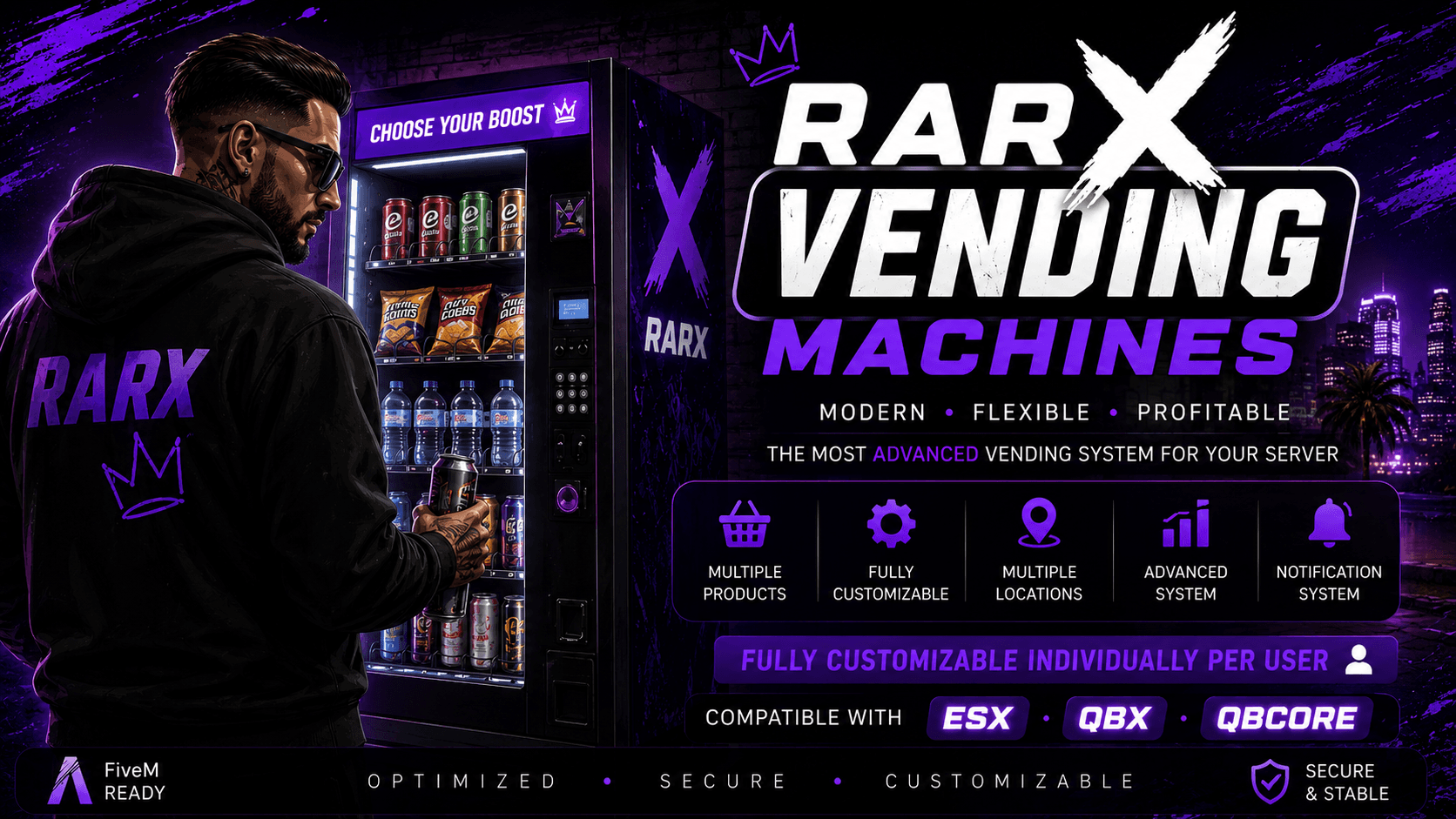
Rarx Vending Machines
Rarx Vending Machines
In-game admin-placed vending machines with custom catalogues, stock, pricing and multi-inventory support
- Qbox
- QBCore
- ESX
rarx_vmachines
Overview#
RARX Vending Machines lets admins place fully configurable vending machines anywhere in the world from a clean in-game panel — no config editing or restarts. Each machine belongs to a categorized group (drinks, snacks, coffee, cigarettes or a custom prop set) with its own product list, per-item pricing and optional stock. Products are handed out and verified through whichever inventory you run, and every change is logged to Discord.
Features#
QBCore, QBox (qbx_core) and ESX
Create, edit and delete machine groups and items from a Vue NUI — no restarts
Drop and fine-tune props in the world with an on-screen control legend
Drinks, Snacks, Coffee, Cigarettes — or a fully custom prop set
Per-item price and optional stock, persisted to the database
Auto-detects or pin: rarx, ox, qb, qs, ps, origen, codem, tgiann, core
Management locked behind configurable ACE groups
Full audit log of every group, item and machine change
Requirements#
| Requirement | Type |
|---|---|
| oxmysql | Required |
| QBCore / QBox / ESX | Required |
| ox_lib | Required |
| rarx_lib | Required (locale/translation helper) |
| Any supported inventory | Required (auto-detected) |
Installation#
Download & Extract
Extract the resource into your resources folder.
Add to server.cfg
ensure ox_lib
ensure rarx_lib
ensure rarx_vmachines
Set Core & Language
setr rarx-lang "en"Then set
Config.Coreinconfig.luato match your framework.Grant Admin Access
Make sure your account is in one of
Config.AdminGroups(e.g.god,admin,superadmin) or grant the custom ace.Open the Panel
Use
/vmadminin-game to start creating groups and placing machines.
Configuration#
Core & Integration#
Config.Core = 'qb-core'            -- 'qb-core' | 'qbx_core' | 'esx'
Config.InventorySystem = 'auto'    -- 'auto' or a specific inventory (see below)
Config.AdminGroups = { 'god', 'admin', 'superadmin' } -- checked with IsPlayerAceAllowedBehaviour#
Config.DebugMode      = false
Config.RenderDistance = 60.0       -- metres a machine prop streams in/out
Config.InteractRadius = 2.5        -- metres to show the [E] hint and open it
Config.ToastAnchor    = 'top-right'
Prop Catalogue#
The catalogue lists the props an admin can attach to a group. The fixed categories (drinks, snacks, coffee, cigarettes) auto-fill their props; the custom category starts empty and lets an admin cherry-pick any interactive prop.
Config.Catalog = {
    { category = 'drinks', label = 'Bebidas', props = {
        { model = 'prop_vend_soda_01',  label = 'Expendedora eCola',   interactive = true },
        { model = 'prop_vend_fridge01', label = 'Nevera de bebidas',   interactive = true },
        -- ...
    }},
    -- snacks, coffee, cigarettes ...
}
Supported Systems#
QBCore, QBox (qbx_core), ESX
rarx_inventory, ox_inventory, qb-inventory, qs-inventory, ps-inventory, origen_inventory, codem-inventory, tgiann-inventory, core_inventory
Using the Admin Panel#
Open
Run
/vmadmin(you must be in an admin ACE group).Create a Group
Add a group and pick a category. Fixed categories auto-load their props;
customlets you pick your own.Add Items
Add the products sold by that group, each with a price and optional stock.
Place Machines
Pick a prop and place it in the world with the placement editor (move / rotate / confirm using the on-screen legend).
Discord Logging#
Audit logging is configured in config_server.lua. Set a webhook URL per event to relay changes to Discord:
return {
    active = true,
    channels = {
        groupCreated   = 'YOUR_WEBHOOK_URL',
        groupUpdated   = 'YOUR_WEBHOOK_URL',
        groupDeleted   = 'YOUR_WEBHOOK_URL',
        itemAdded      = 'YOUR_WEBHOOK_URL',
        itemUpdated    = 'YOUR_WEBHOOK_URL',
        itemRemoved    = 'YOUR_WEBHOOK_URL',
        machineCreated = 'YOUR_WEBHOOK_URL',
        machineUpdated = 'YOUR_WEBHOOK_URL',
        machineDeleted = 'YOUR_WEBHOOK_URL',
    },
}Localization#
Set the language with the rarx-lang convar (shared by all RARX scripts):
setr rarx-lang "es" # default: "en"Translations live in translates/ (en.lua, es.lua) and use the RARX Lang (Locale) system.
Troubleshooting#
/vmadmin does nothing
Make sure your account is in one of Config.AdminGroups, or grant yourself the custom ace (e.g. add_ace identifier.xxx vendings.admin allow).
Items not given / not found
Set Config.InventorySystem to your inventory (or 'auto') and confirm the item names you sell exist in that inventory.
Machine prop not visible
Increase Config.RenderDistance, and verify the prop model is valid and streamed.
No [E] prompt
Stand within Config.InteractRadius of the machine; lower the value if needed.
Tables missing
Confirm oxmysql is running and started before rarx_vmachines; the rarx_vmachines_* tables are created automatically on boot.
Support#
Need help? Reach out:
- Discord: discord.gg/rarxnetwork
- Store: rarxnetwork.com